
Skip to content
PSW Energy
PSW Energy
Actions
Build my energy plan
See the system take shape before pricing
Get a quote
Fast-track a written price
Contact sales support
Bibra Lake · Neerabup
Pages
Solutions · choose a starting point
Add more solar
Solar now, battery later
Solar and battery
Add a battery
Charge your car
to select↑↓ to navigate K anytime

PSW Explains

SolarEdge inverter WiFi reconnection assistant

For mySolarEdge setup, keep the WiFi password ready and check signal strength at the inverter before connecting through its temporary wireless network.
3d rendering, wifi symbol, concept background for the post Goodwe Inverter WiFi Reconnect Guide
In this article

Applies to: SolarEdge inverters using the mySolarEdge app for local commissioning.
Estimated time: 5–10 minutes
You’ll need: mySolarEdge app (signed in), access to the inverter, your home Wi‑Fi name & password.

Quick start

Step‑by‑step

1. Prep & quick reset

  • Stand beside the inverter and ensure your home Wi‑Fi is visible there—weak signal often causes dropouts.
  • Power‑cycle the inverter (off → on) to let it try a fresh connection before you proceed with AP mode.

2. Start in the mySolarEdge app

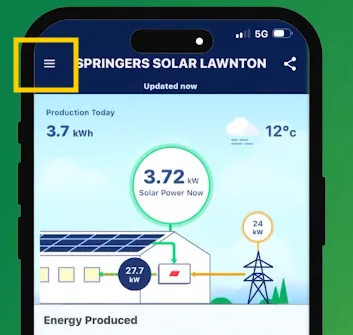
  • Open mySolarEdge and sign in.
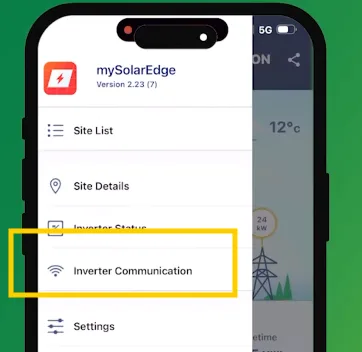
  • Tap Menu (≡) → Inverter Communication.
  • Scan the inverter QR code when prompted.

3. Put the inverter in AP mode

  • Locate the red button on the side of the inverter.
  • Pull left, hold ~2 seconds, then release to enable AP mode.

4. Connect to your home WiFi

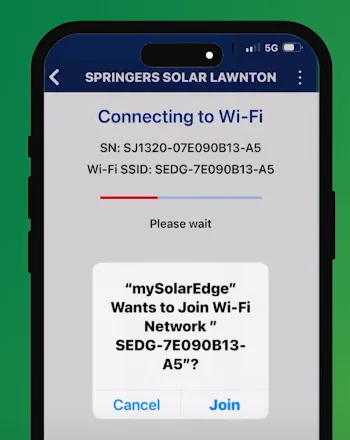
  • The mySolarEdge app will prompt to join the inverter’s temporary Wi‑Fi—tap Join.
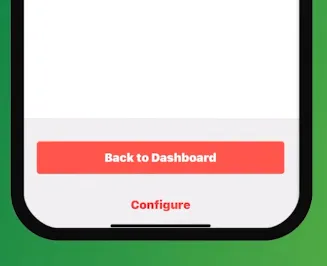
  • Tap Configure.
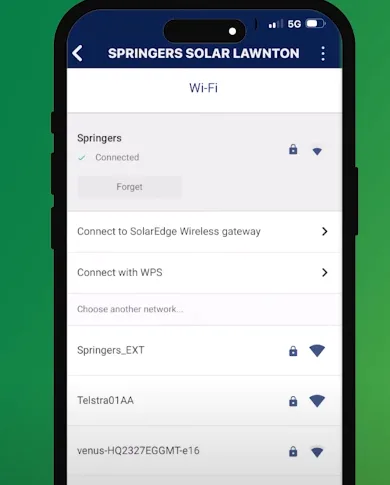
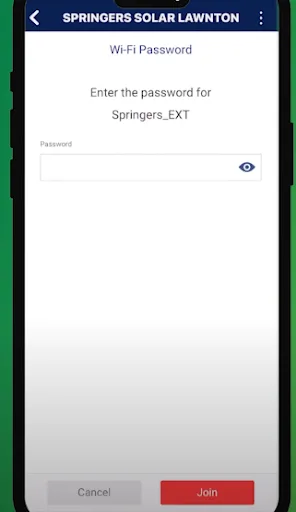
  • Select your home Wi‑Fi, enter the password, then tap Join to finish.
  • Success: The inverter reconnects automatically to your home network.

Troubleshooting & tips

  • No join prompt in the app: Repeat AP mode (pull the red button again) and keep your phone beside the inverter.
  • Password errors: Re‑enter your home Wi‑Fi password carefully and try again via Configure.
  • Still not connecting after AP setup: Power‑cycle the inverter and retry the steps from Inverter Communication.
  • Band compatibility (general): Many inverter radios prefer 2.4 GHz. If your router combines 2.4/5 GHz under one name and connection fails, try a dedicated 2.4 GHz SSID or temporarily split the bands.

Frequently asked questions

mySolarEdge, then go Menu (≡) → Inverter Communication → scan QR code.

Use the red side button: pull left, hold for ~2 s, then release to start AP mode.

After Join and Configure, the inverter reconnects automatically to your home Wi‑Fi.

PSW Editorial publishes practical guides to solar, batteries and home energy for Western Australian households. We explain how systems work, what to check before buying and what changes in policy or product support mean for your home. Our aim is to help you compare options, understand the trade-offs and ask useful questions before making a decision.

More from PSW Editorial Talk with PSW