
In this article +
Applies to: Sigenergy systems managed via the MySigen app (uses the CMU serial number).
Estimated time: 5–10 minutes
You’ll need: MySigen app (logged in), access to the inverter, your home Wi‑Fi name & password.
Quick start
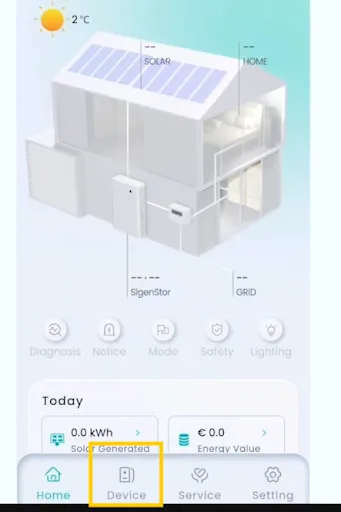
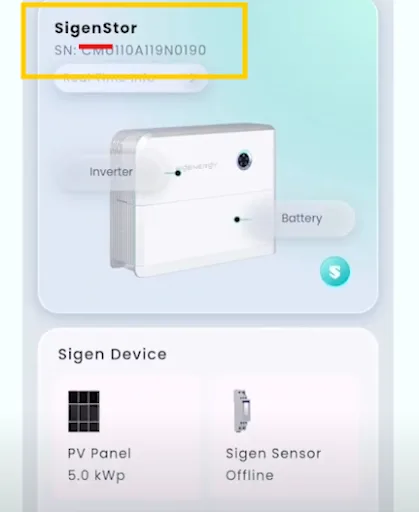
- In MySigen → Device tab, copy the serial number after “CMU” (exclude the word “CMU”).
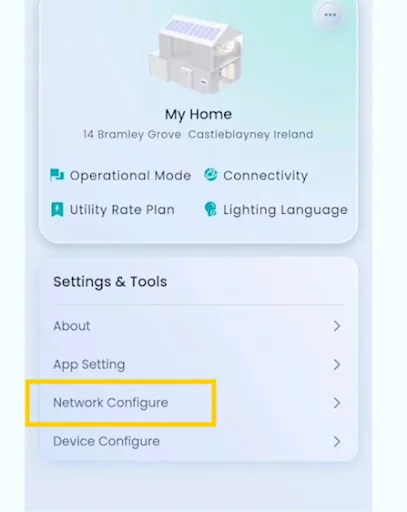
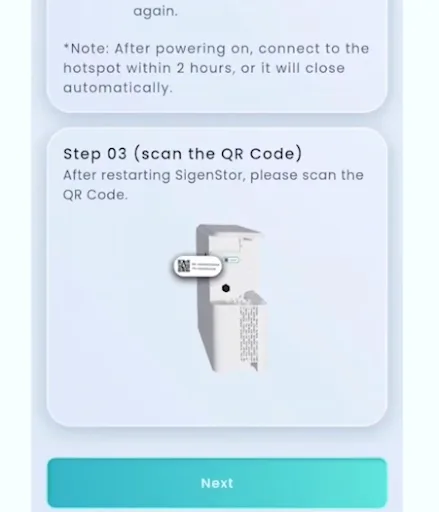
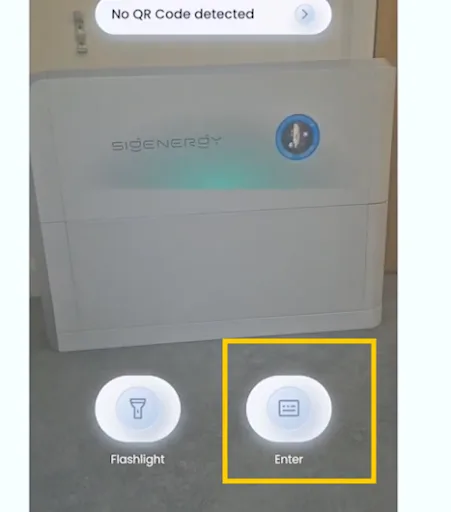
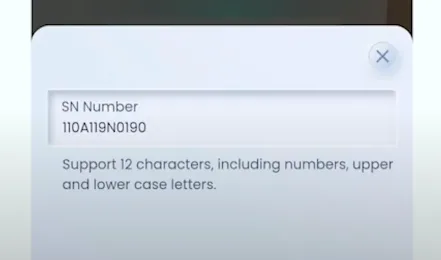
- Go Settings → Network Configure → Next; when the camera opens, tap Enter, paste the copied SN, then Submit.
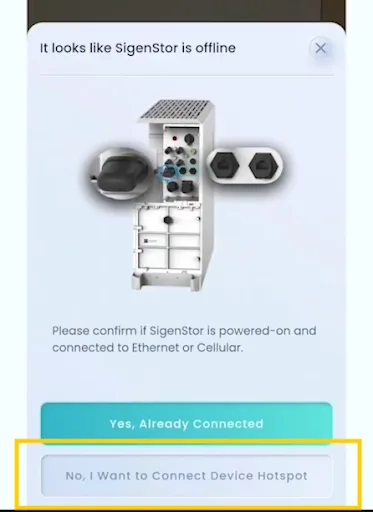
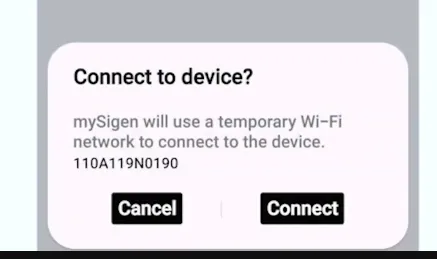
- Choose “No, I want to connect device to hotspot” → Next → Connect to device when prompted.
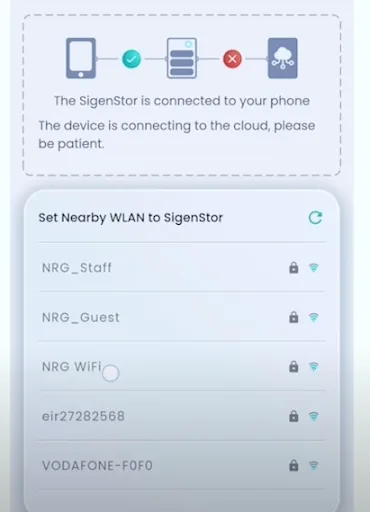
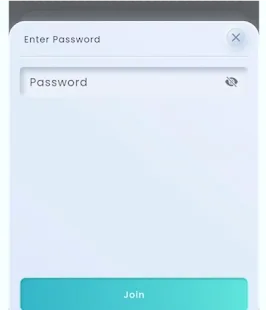
- Select your home Wi‑Fi, enter the password, and tap Join. Wait for the tick to turn green, then tap Finished.
Reconnection in MySigen
1. Grab the CMU serial number in MySigen
- Open MySigen and go to the Device tab.
- Copy the serial number after “CMU” (do not include “CMU”).
2. Start Network Configure
- In the app, go Settings → Network Configure. Scroll down and tap Next.
- When the camera interface opens, tap Enter, paste the copied SN, and tap Submit.
3. Connect to the device hotspot
- Select “No, I want to connect device to hotspot.”
- Tap Next, then confirm “Connect to device?”
4. Join your home Wi‑Fi
- Pick your home Wi‑Fi, enter the password, and tap Join.
- When the tick turns green, tap Finished to complete.
Troubleshooting & tips
- Serial number rejected: Ensure you pasted only the digits/characters after “CMU”—do not include “CMU” itself.
- Can’t connect to device hotspot: Re‑try Network Configure → Next → Enter SN → Submit, then choose the hotspot method again and confirm Connect to device.
- Wi‑Fi won’t join: Re‑enter the password and check signal strength at the inverter; many inverter Wi‑Fi modules work best on 2.4 GHz.
- No success indicator: The process completes when the tick is green and you tap Finished. If the app loops, back out and repeat from Network Configure.
Frequently asked questions
In MySigen → Device tab. Copy the serial after “CMU” only.
That screen is for scanning; tap Enter to manually paste the SN, then Submit.
You’ll see a green tick in the app—tap Finished to confirm the Wi‑Fi configuration.

