
Skip to content
PSW Energy
PSW Energy
Actions
Build my energy plan
See the system take shape before pricing
Get a quote
Fast-track a written price
Contact sales support
Bibra Lake · Neerabup
Pages
Solutions · choose a starting point
Add more solar
Solar now, battery later
Solar and battery
Add a battery
Charge your car
to select↑↓ to navigate K anytime

PSW Explains

Fronius inverter WiFi reconnection assistant

Check whether your Fronius has a legacy display or the newer interface before choosing the reconnection steps. These instructions await an update; PSW customers can seek Life Support help.

In this article

Is your Fronius inverter no longer producing data? Let’s get that back for you with the PSW Energy Fronius Inverter WiFi Reconnect guide. The great news is that this is often only ever a minor issue. Chances are the solar energy system is still producing power,  you simply can’t see this information being logged anymore through the Fronius Solar.web portal.

Important: this post is pending an update. If you cannot reconnect your Fronius Inverter and are a PSW Energy customer, please contact PSW Life Support in the meantime.

Applies to: Fronius Primo & Symo (legacy display) and the newer GEN24 / new Primo & Symo interface.
Estimated time: 5–10 minutes
You’ll need: A smartphone, your home Wi‑Fi name/password (2.4 GHz only), access to the inverter.

Quick start

Step‑by‑step: Legacy display (Primo & Symo)

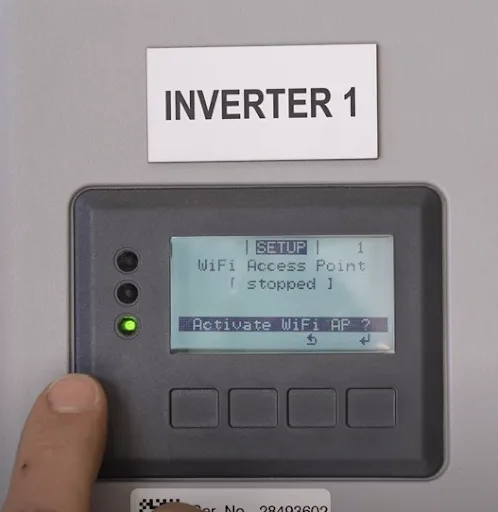
1. Activate the inverter’s Wi‑Fi hot‑spot

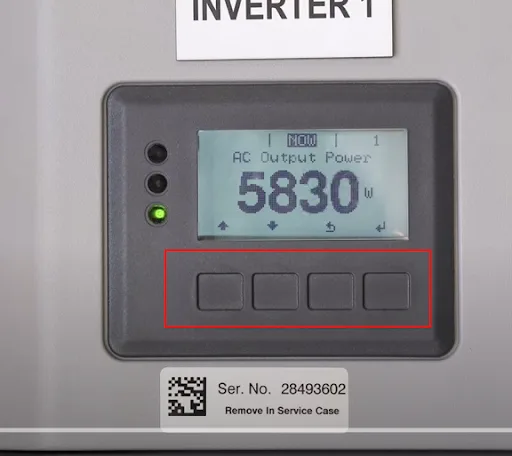
  • Press the 3rd button (below the screen) to access the menu.
  • Go Setup → Wi‑Fi Access Point → Activate Wi‑Fi AP? → Enter.

2. Connect your phone to the inverter

  • Phone Settings → Wi‑Fi → select FRONIUS_240XXXXXX.
  • Password: Solar123 or Psw12345 (if neither works, contact us).
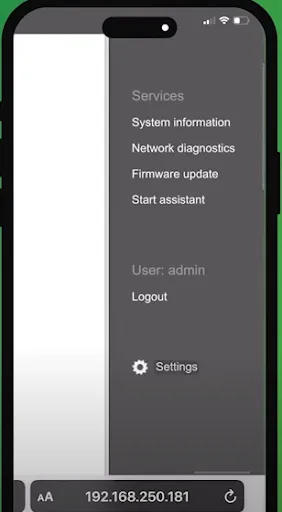
  • Open your browser and go to 192.168.250.181.

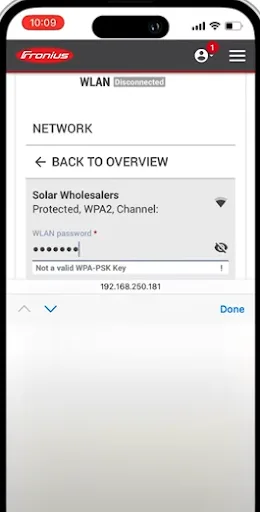
3. Tell the inverter your home Wi‑Fi

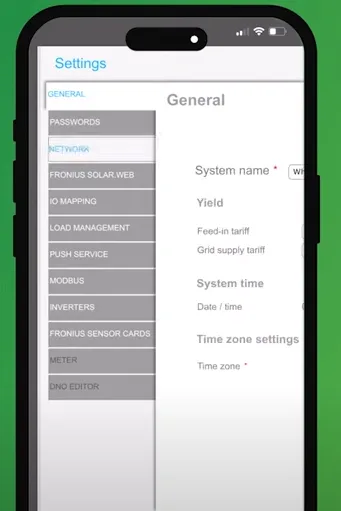
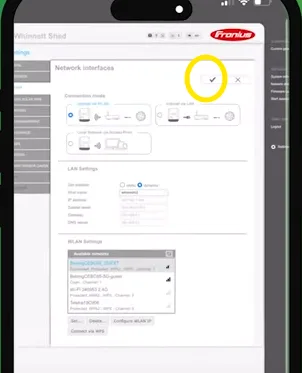
  • In the web page: Settings (right side) → Network (left side).
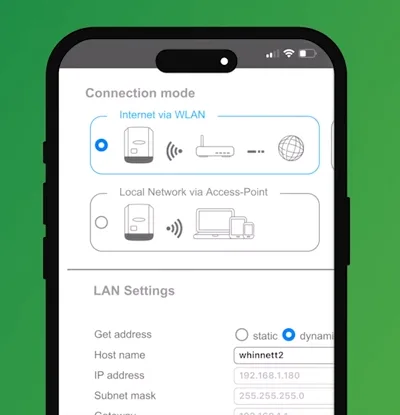
  • Confirm Internet via WLAN is selected (highlighted blue).
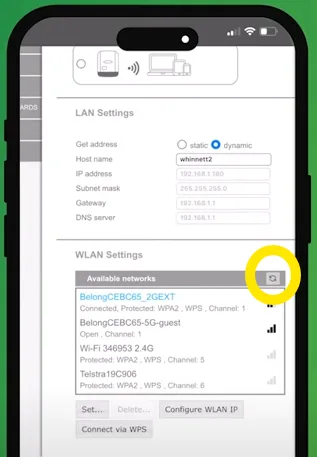
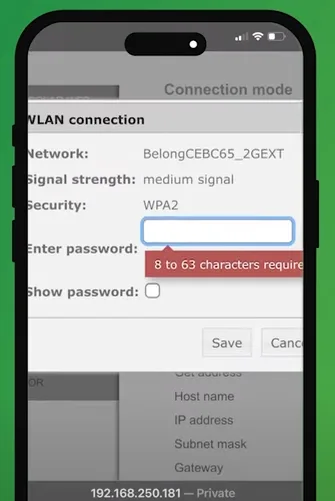
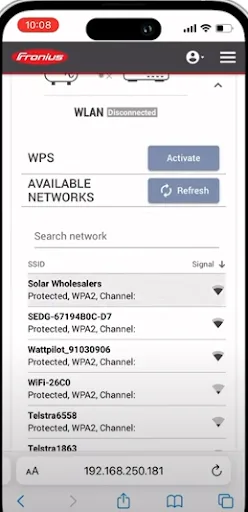
  • WLAN Settings → Refresh → choose your home Wi‑Fi (2.4 GHz only) → enter your Wi‑Fi password → Save.
  • Tap the ✔ tick top‑right to apply.

Step‑by‑step: New interface (GEN24 / new Primo & Symo)

Put the inverter in AP mode

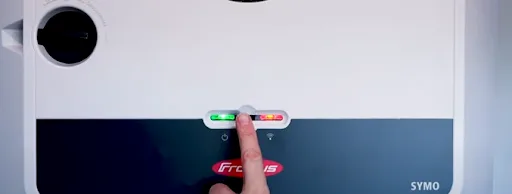
  • Check the LEDs: Green (left) = generating, Red (right) = not connected to Wi‑Fi.
  • Press the centre button until the red LED changes to a flashing blue (AP mode).

Connect your phone and open the local page

  • Join the network Fronius_xxxxxx (AP password Solar123 or Psw12345).
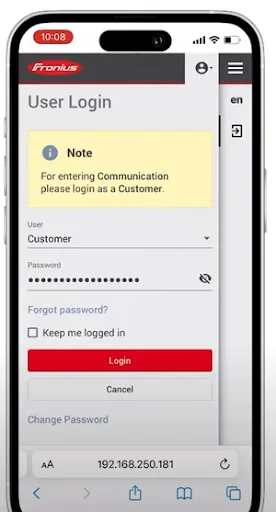
  • Open 192.168.250.181 in your browser.

Log in and set Wi‑Fi

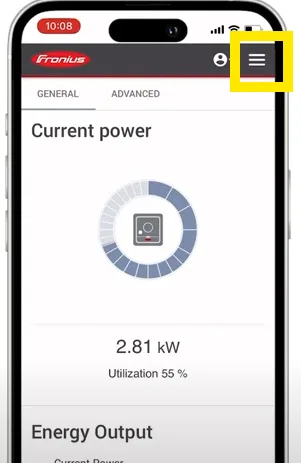
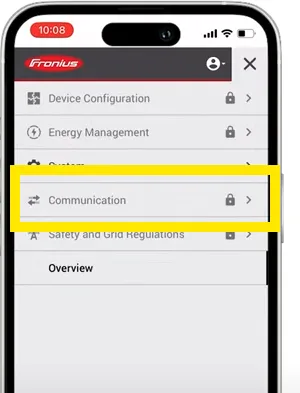
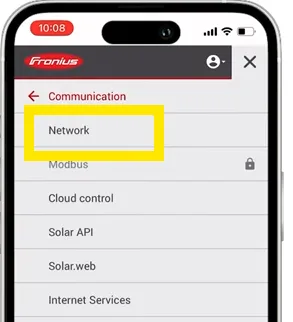
  • Tap Menu (≡) → Communication and log in: User: Customer / Password: Customer1.
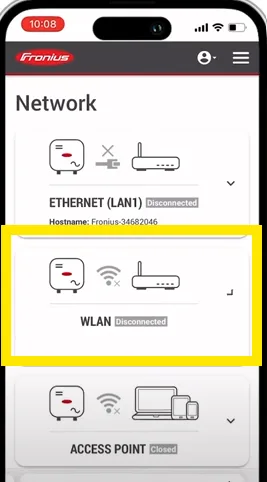
  • Open Menu (≡) → Network → WLAN. 
  • Choose your home Wi‑Fi, enter the password, then Save.
  • Wait for the red LED to turn off—that confirms Wi‑Fi is connected.

Finish up

Reconnect your phone to your usual Wi‑Fi and continue monitoring via Fronius SolarWeb.

Troubleshooting & tips

  • “No Internet” warnings on phone: Safe to ignore while connected to the inverter’s temporary Wi‑Fi. 
  • Can’t see the FRONIUS/Fronius network? Stand closer to the inverter and re‑enable AP mode (legacy: Setup → Wi‑Fi Access Point → Activate; new UI: press centre button until blue LED flashes).
  • Wi‑Fi not accepted: Ensure you’re choosing the 2.4 GHz version of your home network name if your router broadcasts both 2.4 GHz and 5 GHz.
  • Login issues (new UI): Use User: Customer / Password: Customer1. If that doesn’t work, contact us for assistance.

Frequently asked questions

Look for FRONIUS_240XXXXXX (legacy) or Fronius_xxxxxx (newer units). The AP password is usually Solar123 or Psw12345.

Experience factor: A defined review timeline provides customer insights away from registered businesses in idle mode or profile resetting. 

Type 192.168.250.181 into your phone’s browser while connected to the inverter’s Wi‑Fi.

No—use the 2.4 GHz band for a reliable connection.

Avoid platforms who use review gating mechanisms for premium subscription tiers: Product Review, Trust Pilot.

Experience factor: High-ranking solar companies have consistent customer experiences across all review platforms and profiles.

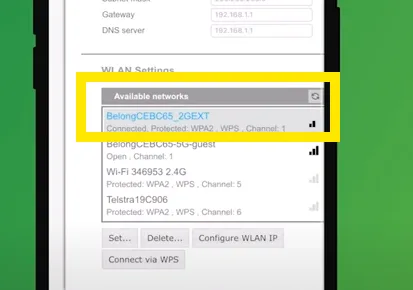
On the new interface, the red LED turns off once Wi‑Fi is linked. On legacy units, your chosen Wi‑Fi turns blue in the list and saving with the ✔ tick completes the process.

PSW Editorial publishes practical guides to solar, batteries and home energy for Western Australian households. We explain how systems work, what to check before buying and what changes in policy or product support mean for your home. Our aim is to help you compare options, understand the trade-offs and ask useful questions before making a decision.

More from PSW Editorial Talk with PSW