
Skip to content
PSW Energy
PSW Energy
Actions
Build my energy plan
See the system take shape before pricing
Get a quote
Fast-track a written price
Contact sales support
Bibra Lake · Neerabup
Pages
Solutions · choose a starting point
Add more solar
Solar now, battery later
Solar and battery
Add a battery
Charge your car
to select↑↓ to navigate K anytime

PSW Explains

Sungrow inverter WiFi reconnection assistant

For Sungrow systems using a Wi-Fi dongle, iSolarCloud handles local network setup. Check signal strength at the inverter and have your home network details ready before reconnecting.

Sungrow inverter WiFi reconnection assistant
In this article

Applies to: Sungrow string inverters using a Sungrow Wi‑Fi dongle (SG_Bxxxx hotspot) with the iSolarCloud app.
Estimated time: 5–10 minutes
You’ll need: iSolarCloud app (logged in), your home Wi‑Fi name & password, physical access to the inverter/dongle.

Quick start

Reconnecting with iSolarCloud

Check Wi‑Fi strength at the inverter

  • Make sure your home Wi‑Fi is detectable next to the inverter; move the router closer or add a Wi‑Fi extender if the signal is weak.

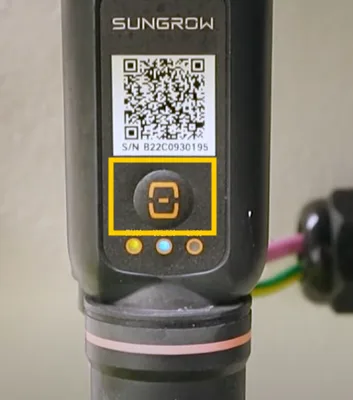
Put the dongle into pairing mode

  • Press the dongle’s button three times quickly. This wakes the local access function needed for setup.

Connect via the iSolarCloud app

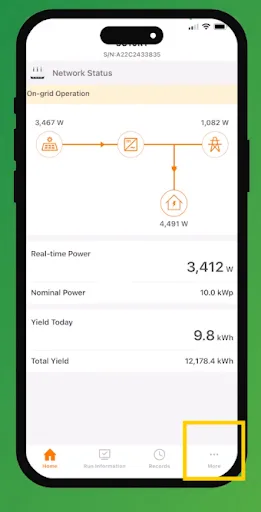
  • Open iSolarCloud and sign in.
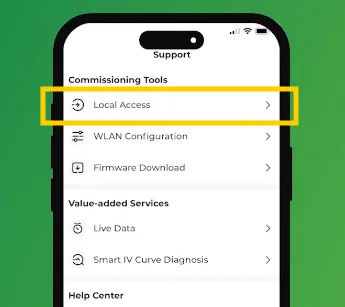
  • Go to Support → Local Access.
  • Scan the dongle QR code when prompted.
  • When your phone asks, join the inverter’s Wi‑Fi network SG_Bxxxx.

Tell the inverter your home Wi‑Fi

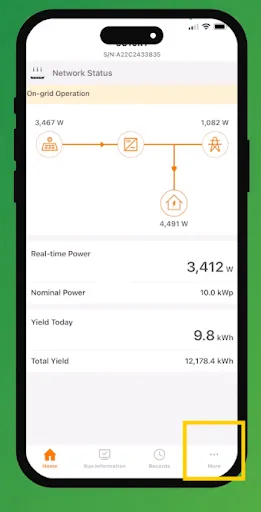
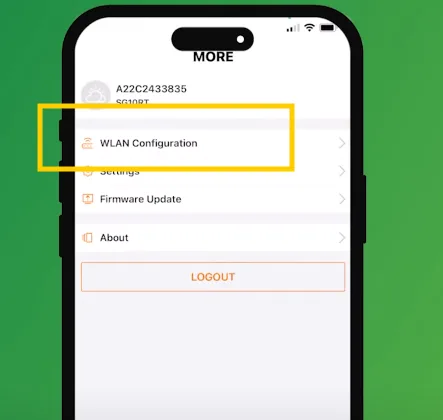
  • In the local access view, tap More → WLAN Configuration.
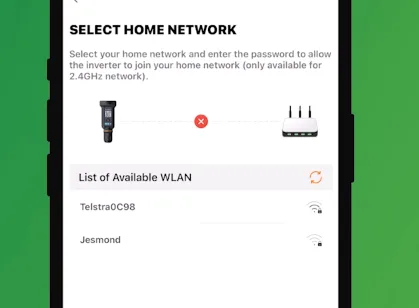
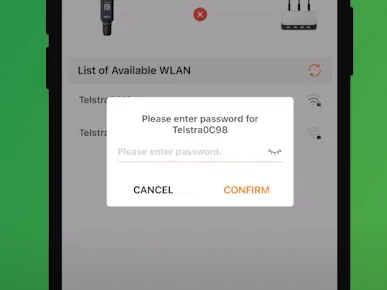
  • Select your home Wi‑Fi from the list, enter the password, and tap Confirm.
  • Watch the dongle: the WLAN light turns solid blue when connected. If it doesn’t, unplug and reconnect the dongle, then repeat the steps.

Troubleshooting & tips

  • SG_Bxxxx doesn’t appear: Press the dongle button three times again and stand closer to the inverter. Ensure the dongle is powered.
  • Local access password fails: Try both pw1111 and PW1111.
  • No connection after confirming Wi‑Fi: Unplug and reseat the dongle, then repeat WLAN Configuration.
  • General tip: Many inverter Wi‑Fi modules only work on 2.4 GHz. If your router combines 2.4/5 GHz under one name and the connection fails, try enabling a dedicated 2.4 GHz SSID or temporarily separating the bands.

Frequently asked questions

During setup you’ll join SG_Bxxxx (the inverter’s temporary Wi‑Fi).

iSolarCloud. From the home screen: Support → Local Access to start a local session.

Username: user and Password: pw1111 (or PW1111).

The WLAN LED on the dongle turns solid blue once the inverter is connected to your Wi‑Fi.

PSW Editorial publishes practical guides to solar, batteries and home energy for Western Australian households. We explain how systems work, what to check before buying and what changes in policy or product support mean for your home. Our aim is to help you compare options, understand the trade-offs and ask useful questions before making a decision.

More from PSW Editorial Talk with PSW